 Dávid Bárdos


 My Computer
 Categories
 Network neighborhood
 Degoogling
 Chevron-locked games
 Along the Edge OST
 My Everyday Superpower
 Date Day
 Five Curious Habits of My Poodle
 The Z323 said goodbye
 My very first blog
 Memories Taken by the Heat
 Bombanana!
 Blaugust 2026
 The fifth grandmother
 Replacing Instagram: EyeSpace
 Mobile OSes (featuring Fairphone 5)
 Daily sparks - May 2026
 Who knows that you blog?
 How I dash
 I dream of...
 Intersecting interests
 Along the Edge
 My oldest things
 My Phones
 Road 96 - My Journey
 Snowfall
 Refactoring: Yeelight GUI
 Gaming backlog
 Clean patching
 About Gridranger
 Friendships in my life
 Intro through traits
 Video games that made me learn
 Family history
 Random facts about me

How to Use Custom Font in JetBrains Terminal🔗
It was tantalizing. I have a favourite terminal font: an old IBM VGA variant. I also updated it with Nerd Fonts icons and glyphs. I can use it in Konsole, PyCharm, and WebStorm, but it wasn't selectable as a terminal font for either IDE’s reworked terminal.
I generated italic, bold, and bold-italic variants for it and even tweaked the font metadata, but it still never showed up as a selectable font in the terminal settings.
So I set it directly in the configuration file. And finally: it worked!
Here’s how you can do it too:
1.) Locate the config folder. ~/.config/JetBrains/PyCharmCE202?.?/options in my KDE Neon. It should be %APPDATA%\Roaming\JetBrains\PyCharm202?.?\options in Windows. For other products (like WebStorm), use the corresponding folder. Keep an eye on the version. You’ll probably want to use the most recent one.
2.) Open up your IDE. Set the desired font for the editor.
3.) Save or Apply the change then close the IDE.
4.) Open editor-font.xml. It will look like this:
<application>
  <component name="DefaultFont">
    <option name="VERSION" value="1" />
    <option name="FONT_SIZE" value="16" />
    <option name="FONT_SIZE_2D" value="16.0" />
    <option name="FONT_FAMILY" value="MxPlusIBMVGA9x16 Nerd Font Mono" />
    <option name="FONT_BOLD_SUB_FAMILY" value="Regular" />
  </component>
</application>
5.) Copy the line with the FONT_FAMILY setting. You can copy the whole file if you want to, but the update the 2nd line to <component name="TerminalFontOptions">.
6.) Open terminal-font.xml. Its structure is the same. Paste or replace the FONT_FAMILY line.
7.) Launch your IDE again. Now, it will have the font you've just set:
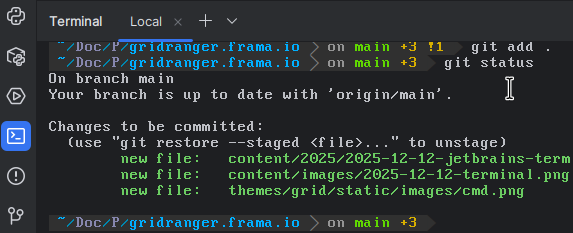
You can set a different editor font after that. It won’t affect the terminal font. We simply used the editor’s setting to get the exact configuration to paste into the terminal’s configuration file.
You can also change the terminal font size from the UI without losing your font setting. But if you select a different terminal font, the custom one might disappear from the dropdown.